
An advanced computing tip today on speedlighter…:
Have a Mac or UNIX-like computer? Then you can use a simple little command to synchronise disks. Let me explain.
I have two hard disks next to the Mac. Two 3TB disks (I just upgraded them). I work on one: all my images and Lightroom files and office admin files live there. Then I have the other.
Whenever I work, as soon as I am done on one and am sure it’s all good, I run the following command on my mac:
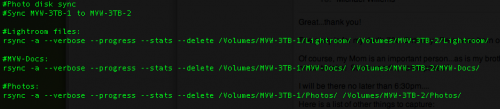
I.e. the following is the actual commands; the lines preceded by # are just comments:
rsync -a –verbose –progress –stats –delete /Volumes/MVW-3TB-1/Lightroom/ /Volumes/MVW-3TB-2/Lightroom/
rsync -a –verbose –progress –stats –delete /Volumes/MVW-3TB-1/MVW-Docs/ /Volumes/MVW-3TB-2/MVW-Docs/
rsync -a –verbose –progress –stats –delete /Volumes/MVW-3TB-1/Photos/ /Volumes/MVW-3TB-2/Photos/
The rsync command intelligently compares the two disks and adds anything to disk 2 that was added to, or changed on, disk 1, while deleting anything from disk 2 that was deleted on disk 1. A perfect backup in seconds (the first time can take a day of course, depending on how full your first disk is).
Using the nano text editor, I put these commands in a little text file called “syncdisks”, and I make that file executable using the chmod command (chmod 755 ./syncdisks). I then call that file by typing .syncdisks every time I want to run it.
I could automate further but this is good for me – and it shows the power of the command line, doesn’t it? Of course you would modify this to reflect the names of your disks and your folders to be copied.
(If this was all a bit techie for you, ignore this post and move on to tomorrow!)
good tip do you know if this tip can be done on a windows computer?
For Windows XP and 7, I use a utility which can be downloaded from Microsoft for free called RoboCopy. In a DOS command line enter;
Robocopy a: b: /mir (a: = source drive, b:=destination drive)
There are several other functions that can be used in RoboCopy but the above command will make a clone of your source drive.
Hi Michael,
In the Mac Disk Utility, you can designate any two drives as a RAID pair. This will automate the process eliminating the need for a script. Its also fun watching the two drive activity LED’s flashing in perfect unison.
Dave
Rsync is a very nice tool (a favourite one, in fact)
You could also use the -u (or –update) option to save some time
by skipping newer files on target.
Dave: Rsync is better than RAID in the way that you have some “delay” in the backup to prevent accidental delete (by human mistake… more often than hardware failure !!!)
When you Rsync your drives every early morning, if you mess up during the day, you can still restore from the last night’s backup. On RAID, the mistake is carefully replayed both sides, so you loose everything. Time machine would be an option in this case (on Mac)
Nice. Coming from the SysAdmin world, rsync is well known and defacto for many operational tasks. 🙂
Rsync and RAID address and solve different problems:
RAID takes care of hardware failure, if you need your live and current data to be available.
Rsync allows you to make and keep copies of data in sync periodically, for disaster recovery/backup purposes. It is meant to be used to bring back things, in case everything dies.
In an ideal world, your working computer would have mirrored or parity RAID storage to fend off a single drive failure. The Rsync is in the event that your computer and the disks inside are destroyed, lost, or stolen.
For those familiar with Apple’s TimeMachine feature, the rsync command can implement it fairly simply via symlinks, allowing you to “undo” some changes you might have made accidentally. I have something like that setup to do hourly snapshots of my website/blog/etc. in the event of an “oops”. The snapshots are differentials, so take up only a tiny fraction of what the complete image would take up.
Pingback: My Backup Strategy | www.SpeedLighter.ca