Studio light note

Welcome, all, including new students and reader.

Continuing in the studio lighting technique series of posts, today, let’s look at the effect of a background light.

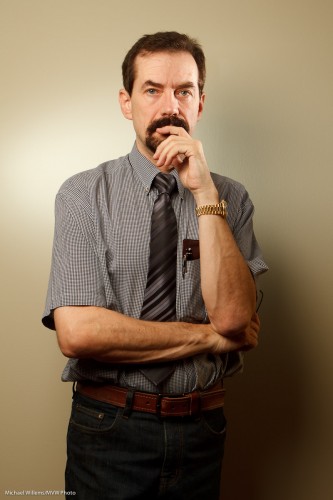
A simple portrait (yes, as you see, I am my most patient model):

That was lit with one strobe in a softbox on our left. Simple, nice, soft light.

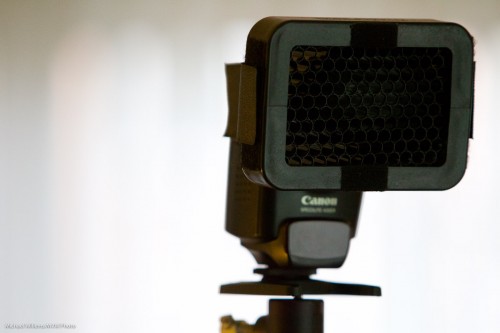
But wait. Perhaps a little more light on the background would help offset the model from the background a little better. For this, we use a speedlight, with a grid (so as to avoid the light going everywhere).

Like this, using a 430EX (similar to a Nikon SB600) fired with a Pocketwizard, and fitted with a Honl grid:

And that gives us very different light.

Now we could turn that background up, or down; or change the direction.

The point is that this allows us to play with “foreground versus background” a little. Offsetting your subject from the background is always good – dark background and light subject or light subject and dark background are both good. There’s no one way – it’s more that there are a number of ways of doing things. And by controlling liught, you control those ways.


Hold it!

Hold your camera, that is. And hold it the right way. Holding your camera correctly ensures that you minimize the shaking, and you make adjustments as quickly as possible, without losing time.

And how do you hold the camera?

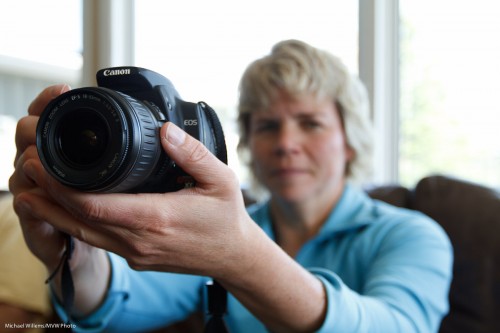
You support the lens with the palm of your left hand, thumb on the left side (not under the lens). I.e. you support the camera like this:

(Of course when you are taking an actual picture, and not just demonstrating, like today’s student, then you would ensure the viewfinder bumper actually touches your face.)

Note how I used “off-centre composition” – the rule of thirds. The subject (the camera, in this case) is not in the middle. Only Uncle Fred puts the subject in the middle in every picture.

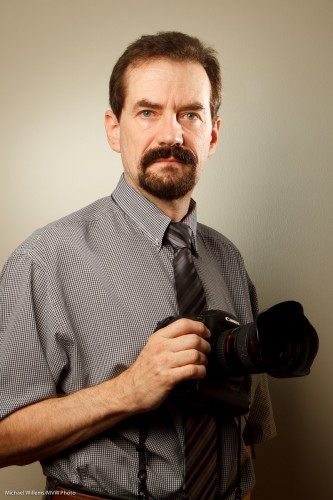
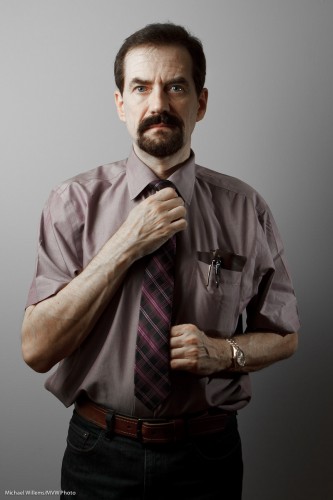
You would also consider turning the camera 90 degrees to the left, to get it into vertical position (i,e. the shutter is on top now, not at the bottom). Shoot vertical when shooting vertical subjects, like towers – or people, like me:

Photographer Michael Willems

(Oh, and one more benefit to holding the camera right: you look like you know what you are doing).


More self-portrait, and notes

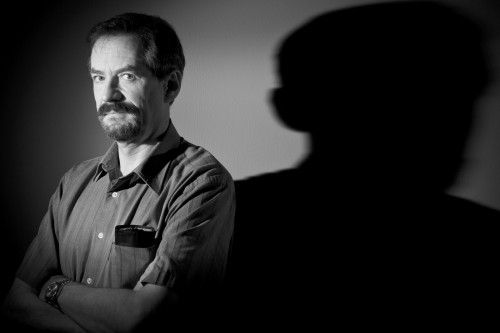
Here, another self portrait: “self with shadow”.

I want to point out a few compositional things about this image:

  • Black and white allows me to concentrate on the subject (that would be me), not the colours.
  • Contrast is important, so I carefully positioned myself to cast the right light so my face and head stand out.
  • I composed so the entire shadow fits.
  • The image uses a typical rule-of-thirds composition.
  • In what may look like a break from tradition I am facing out of the frame (but I am looking in so it is OK).

As you can see, even in a simple two-light portrait, some thought is applied to make it good. And some trial and error. Note that some post cropping and rotating is OK if you cannot get it right in the camera.

One more tonight:

Here as you see I have desaturated red and orange slightly using “HSL” in Lightroom. Less drama, to, since I am now using an umbrella rather than a grid. So the umbrella casts light onto the background.

These self portraits are fun and I urge you to do one, using off-camera light (flash or natural).


Designing a one-light self portrait

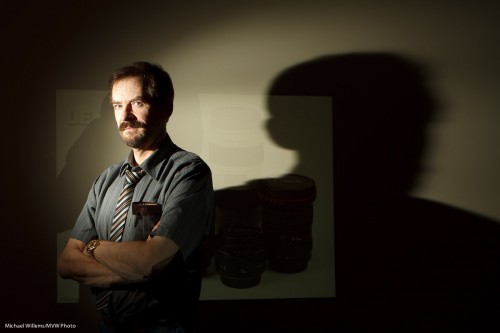
Here is a self portrait, and the process that went through my head making it. I thought that would be good to share. Here’s how to make a dramatic self-portrait in ten steps.

  1. First, I thought “let’s do a quick self portrait, indoors, lit by simple TTL flash”.
  2. I then thought “But let’s make it off-camera flash”.
  3. I went on to think “I want a dramatic image, so let’s use only flash light: available light should play no role”.
  4. To achieve that, I set my camera to manual exposure,  1/125th second, f/5.6, ISO 100. I took a test shot: black. Good, just what I wanted.
  5. Next, I aimed a single 430EX flash in slave mode at the wall diagonally from the side.
  6. Next, I attached a 1/4″ Honl Photo grid to the flash to avoid lighting up the whole wall; instead, I cast a nice parabola. That grid is my most used accessory, I think.
  7. I added a projected image of a set of lenses, only just visible.
  8. Now I put myself into that parabola: light straight into my face. Diagonal to the camera.
  9. I selected an almost-standard lens length (28mm on a Canon 7D, meaning a “real” 45mm) and off-centre composition, with a heavy shadow dramatically cast by me onto the wall.
  10. Finally, to take the shot I would have used a tripod, but since I had a student available, I asked her to shoot for me (Kayleigh, you know who you are).

And the result? Here it is.

Photographer Michael Willems

Photographer and educator Michael Willems, Oakville, 16 May 2011

(For best results, click and  view at original size)

What do you think? Me to a T, eh? This entire shot took just a few minutes to set up. You can do this too!


Tulip Mania

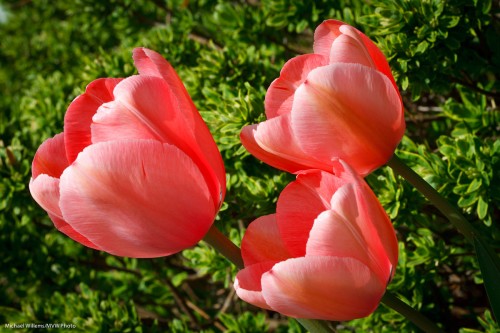
The front porch is full of tulips. Beautiful. And we will have Vancouver-type weather (i.e. rain) for the next seven days so I shot a few snaps while I could.

Tulips in the front garden

Tulips in the front garden

I used a macro lens.Handheld, which is bad. And I used the light you should never use: direct sunlight. And yet, I wanted a few pics.

So what are my strategies to deal with this? here are some of them.

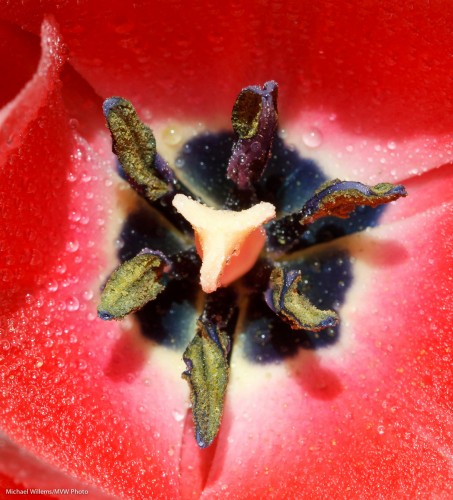
Shoot close up. Use a macro (Nikon: “Micro”) lens if you can and capture detail.

Tulips in the front garden - detail

Tulip sex organs

Select a small enough aperture. A small “F-number” like 5.6 or 4.0 will give you way too restricted depth of field. You may need to shoot at f/8, f/11 or even f/16 or sometimes beyond.

Tulip (Photo: Michael Willems)

Tulip

Watch the wind. Shield the flowers from it, or shoot when they are momentarily still.

Use a high enough ISO. That way you can get the shutter speed up to, say, 1/500th of a second, while keeping a nice small aperture.

Shoot through the flower if you can. Nice saturated colour will result, instead of washed-out overexposed colour.

Tulips in the front garden

Tulips in the front garden

Watch the backgrounds. Simple is good. Simplify, simplify, simplify.

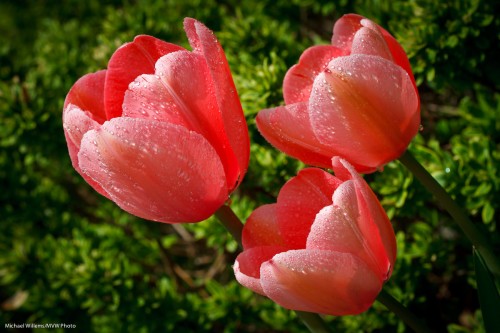
Select contrasting colours. Red and green. Or colours that go very well together like purple and green, my favourite combo.

Tulips and background (Photo: Michael Willems)

Tulips and background

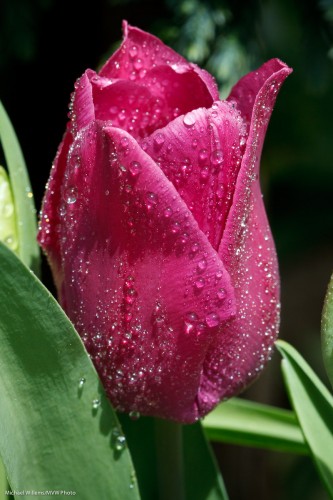
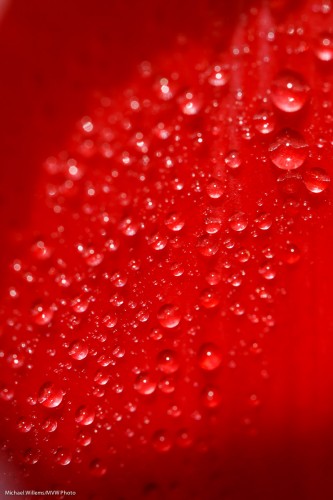
Wait for a rain shower. Gentle spring rain looks good:

Gentle Spring Rain (Photo: Michael Willems)

Gentle Spring Rain

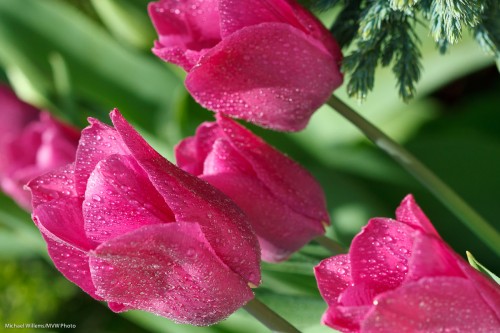
Alternately, do not wait. I have two secret words for you. Spray bottle, and water mixed with glycerine (available from any drugstore). OK, that’s six words.

Gentle Spring Rain (Photo: Michael Willems)

Gentle Spring Rain

Go on, go have some fun. Even if you live in Vancouver – sunlight bad, overcast good, for flowers.


A few more aquarium shots

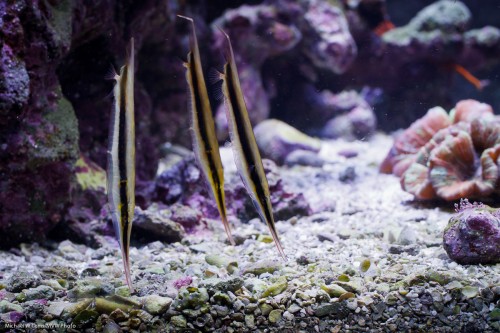
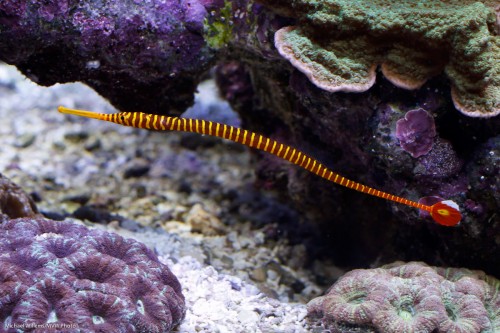
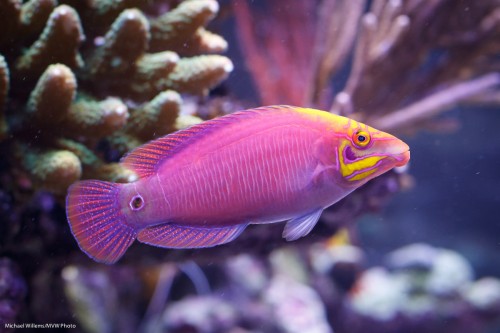
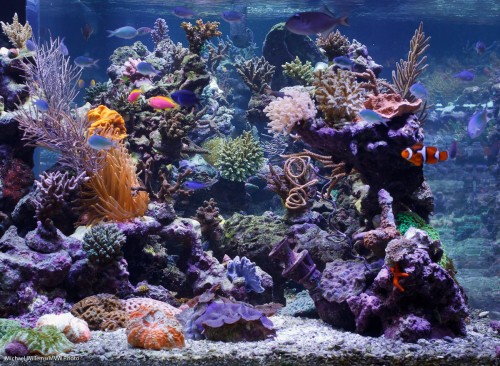
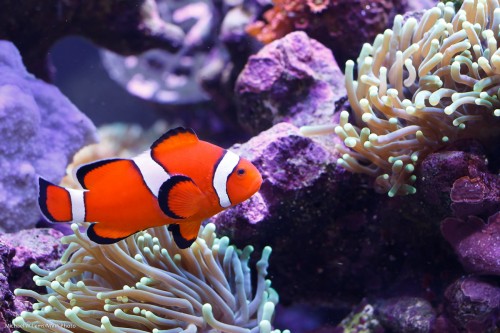
A few more shots from my student Peter’s fabulous aquarium:

(As always, click through to view original size to see the shots properly).

For these snaps, I used the standard lens and 1/160th second at f/5.6, ISO 800 for the faster fish; 1/125th sec at f/8.0, ISO 800 for the more depth-of-field shots of the slower fish.

And I make it easy on myself:

  • I shoot perpendicular to the glass
  • I look for contrasty situations and good light.
  • I shoot multiple shots. It is OK to shoot 6-12 shots to get one razor-sharp one!

This way, you can get good shots without pain.


B&W tip

Have you ever thought that a nice black and white photo was very worth looking at?

That is because in B&W we do not get distracted by colour: we see the pure image. A photo is composition + moment + light, and in some cases colour just distracts from that.

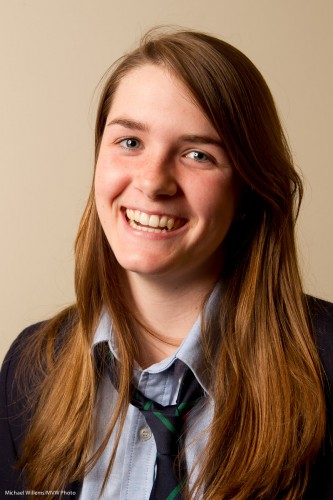
So this one-light image, from the other day, is fine:

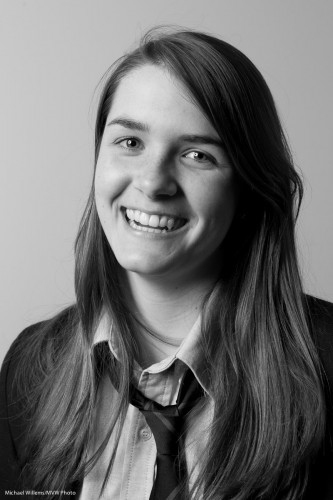
But this image is simpler, and, I think, more powerful:

Plus… there are fringe benefits. Doing a B&W conversion I can selectively increase or decrease colour channels. And by slightly, every so slightly increasing red, orange and yellow, I can:

  • Fill in shadows;
  • Make skin even smoother;
  • Increase the brightness of teeth.

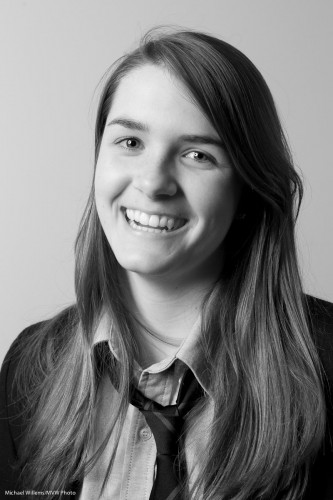
Now of course a teenager needs none of these, but you can nevertheless see this is a better image:

And this only took a few seconds in Lightroom, which has en excellent B&W conversion tool.

And we do this in Lightroom, not in the camera, because  that way:

  1. It saves time;
  2. We can change our minds;
  3. We can do a selective per-channel conversion as described above;

When you shoot B&W, do feel free to set the image style to B&W on your camera if you shoot RAW (because in that case you are still saving all colours; it is only the preview that is shown in B&W), but see that preview just as a rough idea and convert properly in Lightroom on the computer.

TIP: if you want to see where someone may develop skin issues decades from today, convert to B&W and then pull red up and pull orange down in Lightroom. You wil now see someone with any skin imperfections magnified hundreds of times. I wil not do it to this lovely young lady, but to see the effect, do it to a picture of yourself.


How now, green screen?

Why do we use a “green screen” background to shoot subjects sometimes?

Here’s why. The simple colour (usually a specific green, though it could be blue or some other colour) can be replaced easily by a new background.

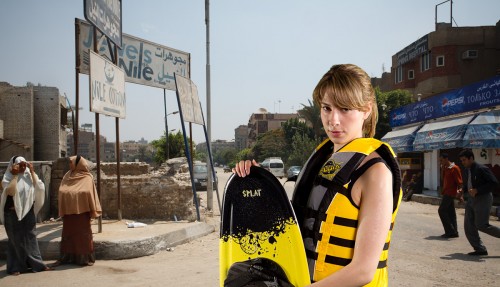
Say I want to shoot a wakeboarder in Egypt. Makes sense, the desert, wakeboarding, right? So to do this, I can fly her and a bunch of lights to Egypt.

Or, I can do the following instead.

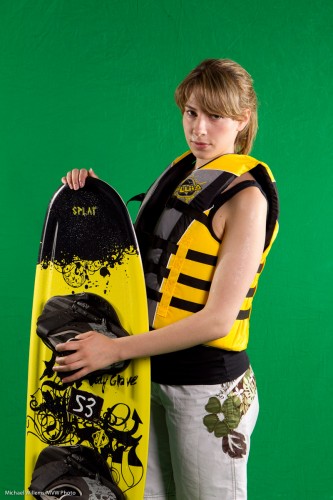
First, shoot her against a green screen background:

Jenna Fawcett against a green screen (Photo: Michael Willems 2011)

Jenna Fawcett against a green screen

Then go to Photoshop (not that I like Photoshop – I do not, but for serious manipulation work like this it is the standard) and do the following:

  1. Open the photo in Photoshop.
  2. Select ‘Color Range…’ from the ‘Select’ menu.
  3. After the Color Range dialog box comes up, click on the eyedropper tool, drag the ‘Fuzziness’ slider to around 30, check the ‘Invert’ checkbox, choose ‘Grayscale’ from the ‘Selection Preview’ popup and make sure the ‘Selection’ radio button is pressed.
  4. With the eyedropper tool, click in the green area of the image. You should see much of the green area as white, and the rest of the image (which gets selected) as black. If there are still areas of the green screen which are not white (e.g. wrinkles in the backdrop), hold down the Shift key and click on them with the eyedropper until all of the green area is selected.
  5. If there are still pixels here and there that are white, you can lower the Fuzziness until it is easier to click on the areas. You can use the ‘Refine Edge’ dialog from the ‘Select’ menu.
  6. Once you’re satisfied with your selection, click ‘OK’.
  7. You should see the object you are trying to select selected. If there are any problem areas (i.e. you see scrolling ants in areas inside or outside your selection that shouldn’t be selected), use the lasso tool (hold down Shift or Option (Mac)/Control (Windows) to add to or subtract from the selection) to make your selection perfect.
  8. Now you are ready to remove the green screen. Make sure you’re working with the proper layer, and, if you are on the ‘Background’ layer, double-click it and click ‘OK’ to make it into a normal layer, then select ‘Inverse’ from the ‘Select’ menu to reverse the selection.
  9. Now press the ‘delete’ button or select ‘Clear’ from the ‘Edit’ menu to remove the selection.
  10. The edges of your object/person may have a slight ‘halo’ around them. Clean them up by selecting ‘Layer>Matting>Remove White Matte’ or ‘Layer>Matting>Defringe…’; usually 1-3 pixels will do the trick.
  11. Now you can put any background you would like behind your cut-out object. I select ALL in the first image, then COPY, then I open the second image, and select PASTE. Now I scale, rotate, etc.

Now you get this:

Jenna Fawcett in a virtual Egypt (Photo: Michael Willems 2011)

Jenna Fawcett in a virtual Egypt

(Go to full screen to see the detail.)

Much cheaper than flying to Egypt. No? And it took only a  minute or two. If you have never tired “green screen”, you might find it occasionally fun or necessary.


Making it seem easy.

A student wrote to me just now, about last Saturday’s workshop, “You and Joseph make it look so easy!”.

He means things like turning this well-conceived but not-very well made available light snapshot…:
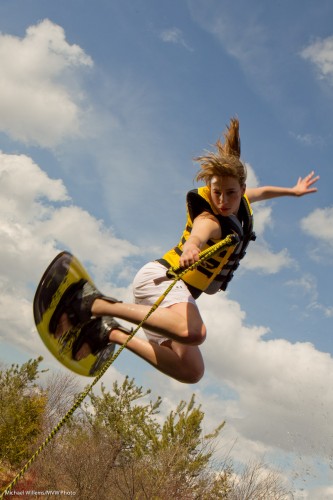
…into this creatively lit art photo:
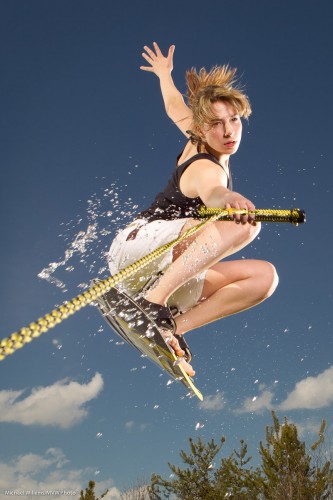
That was from the workshop last Saturday. And yes, we shot this in the camera like that – it’s not Photoshopped.

Our student is underestimating himself, and based on past performance I am sure he did great – but his point is well taken. Experience makes everything seem easy. Brain surgery, too (one day I must ask  brain surgeon).

How do you learn? My teaching uses the following methodology:

  1. You learn by understanding technical basics.
  2. Then you build on those in a step-wise manner – logical progression is key here. Build understanding, one fact at a time. Only when you “get” one fact, move on to the next level, that builds on the previous.
  3. Then you lean how these principles and technologies apply in real life: i.e. what situations they address.
  4. Then you practice. This is when you really learn. During, and after, this practice, of course you continually go back to step 1 and review the fundamentals – and it is at this point that they will all eventually click into place.

That is behind my basic teaching (“learn the camera”), and my advanced teaching, in particular the “Advanced Flash” and “Event Photography” signature courses. And it is also behind the practical workshops Joseph Marranca and I teach to small groups of students.

Sometimes this teaching can seem a bit much. So many facts to learn! But compare this to driving a car, which is also complicated. Or try riding a bicycle.

An image is the confluence of moment, subject, and light. So, the key to the shot above is:

  1. Know the technical aspects of your photography (without that, all else fails);
  2. Come up with the concept;
  3. Ensure you have equipment;
  4. Ensure you have model, setting and props;
  5. Design the right lighting – the key step in this image;
  6. Execute!

On the workshops, we do everything from step 1 to 6. The shots above are made by everything coming together. Without the idea – nothing. Without model and props – nothing. Without technical skills – nothing. Without equipment – nothing.

So how did we make that shot?

We rented a boat, and… oh wait. No lake.

So we used the following:
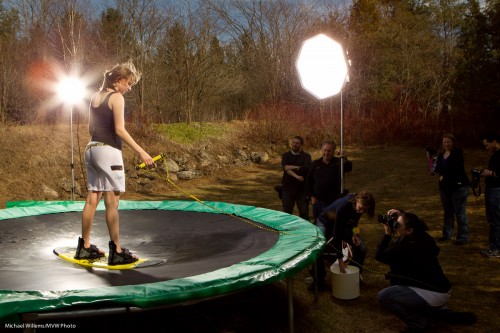
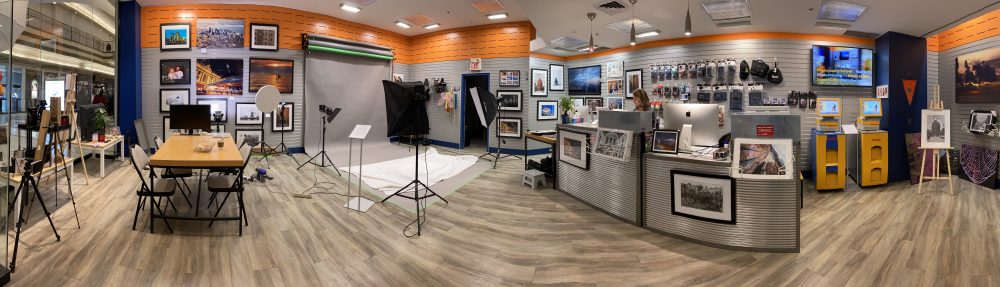
Not something you set up in ten minutes, of course. But when you do it, and it all comes together, the images are great.


What if there’s no wall?

I keep recommending that when you use TTL flash, you bounce it off walls or ceilings.

So what if there is no wall or ceiling?

Then you do the following.

  1. Ensure you expose the background well, with high ISO, open aperture, and slow shutter as needed.
  2. You may be able to bounce after all, when your ISO is high and aperture is open. Flash can reach farther than you think! So – try.
  3. You can move the subjects! Ask them to “move over here for a second” – near a wall. Every venue has some wall or other, or perhaps a low ceiling in one part of the room. No reason you cannot ask people to move!
  4. If that fails, bounce of “anything”, using a Fong lightsphere. Not creative light, so this is not your first choice, but it can save your behind.
  5. And if all else fails – direct flash, but perhaps still modified by a bounce card (or even a Fong thing aimed forward). And do not forget flash compensation.

So you see, there are always options.